
Volum documentation
Your private 3D library, properly organized.
Start on one computer, bring projects to the workbench, or run an always-on library on hardware you control.
- No account
- No hosted library
- Your storage
Choose a setup
One library. Three ways to use it.
Begin with Desktop. Add mobile or a dedicated server only when your workflow needs them.
Desktop library
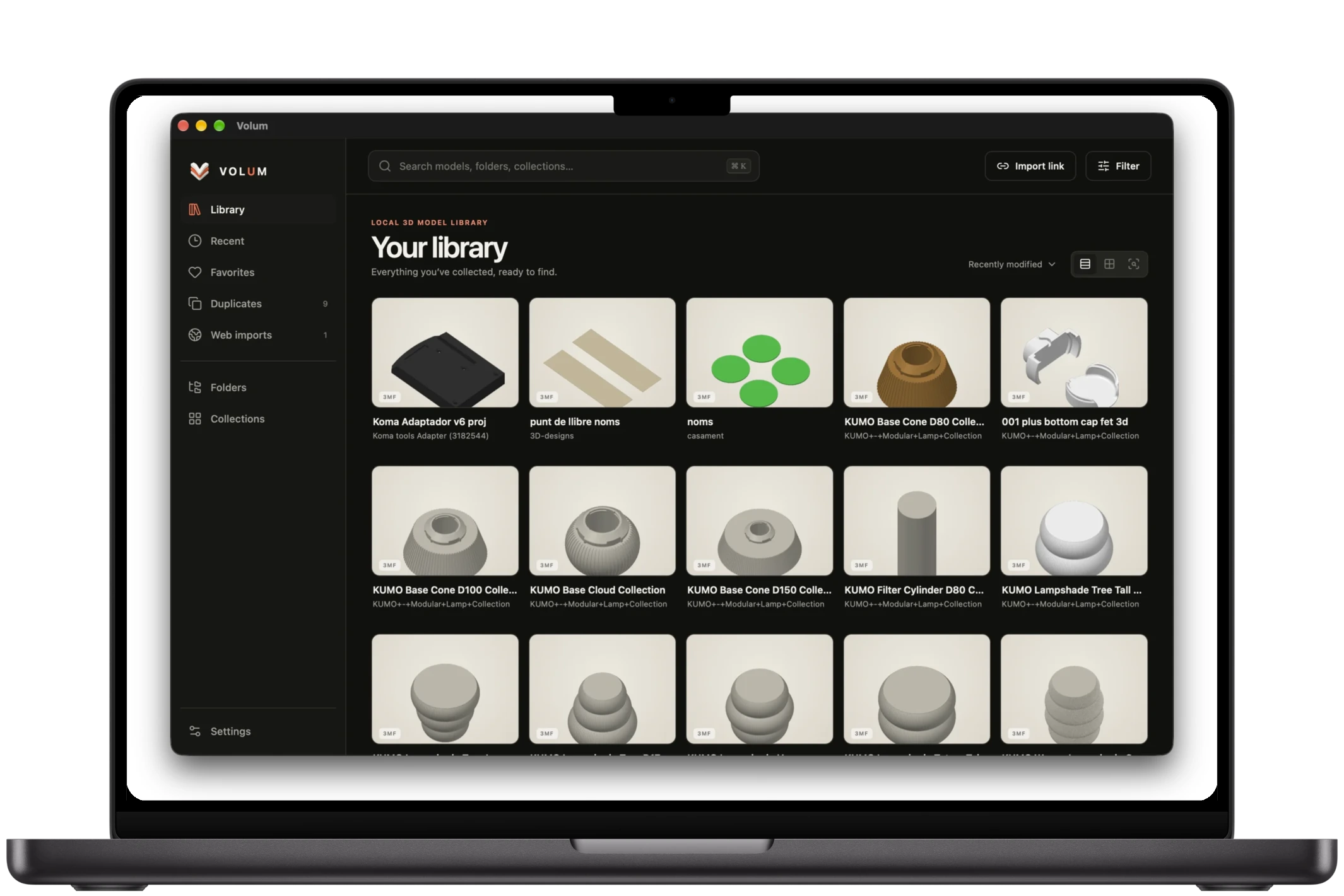
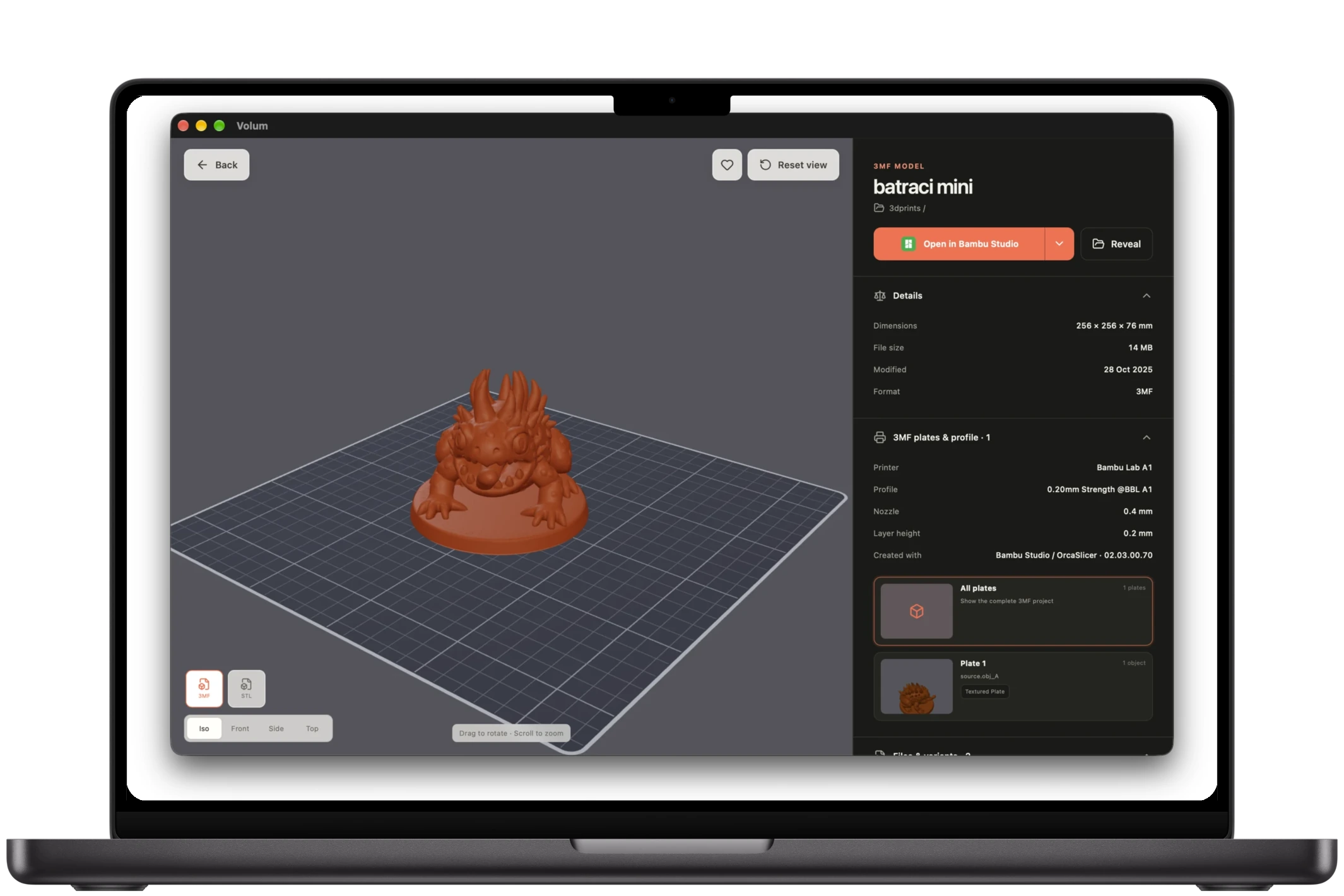
Install Volum, connect existing model folders, and build previews locally.
Installation guide →Mobile companion
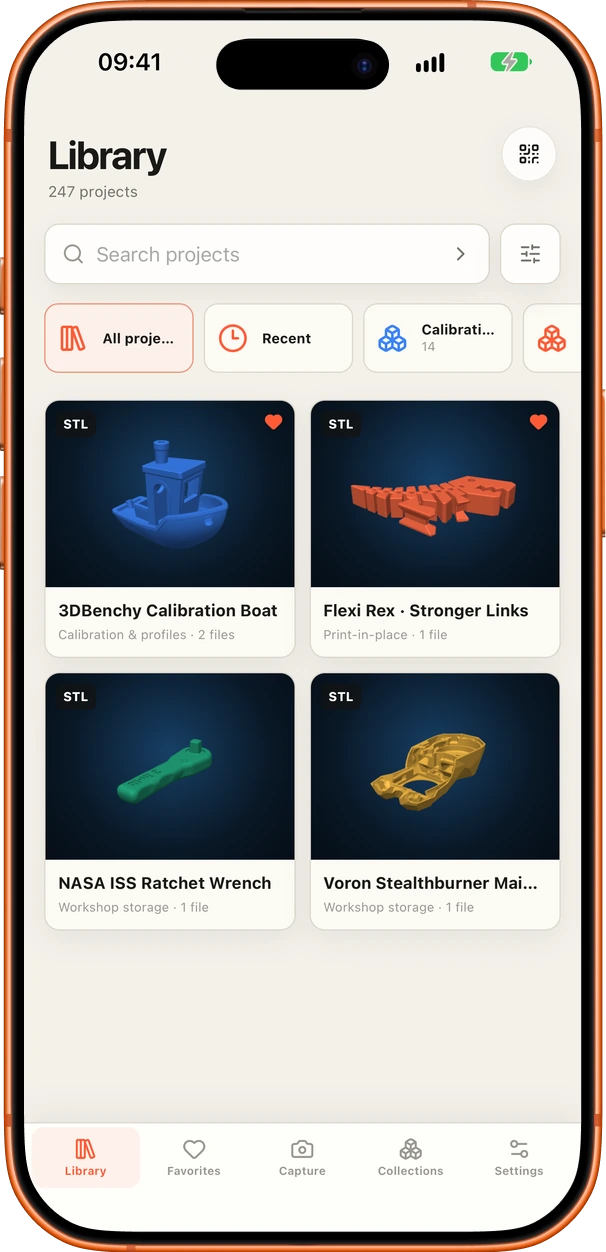
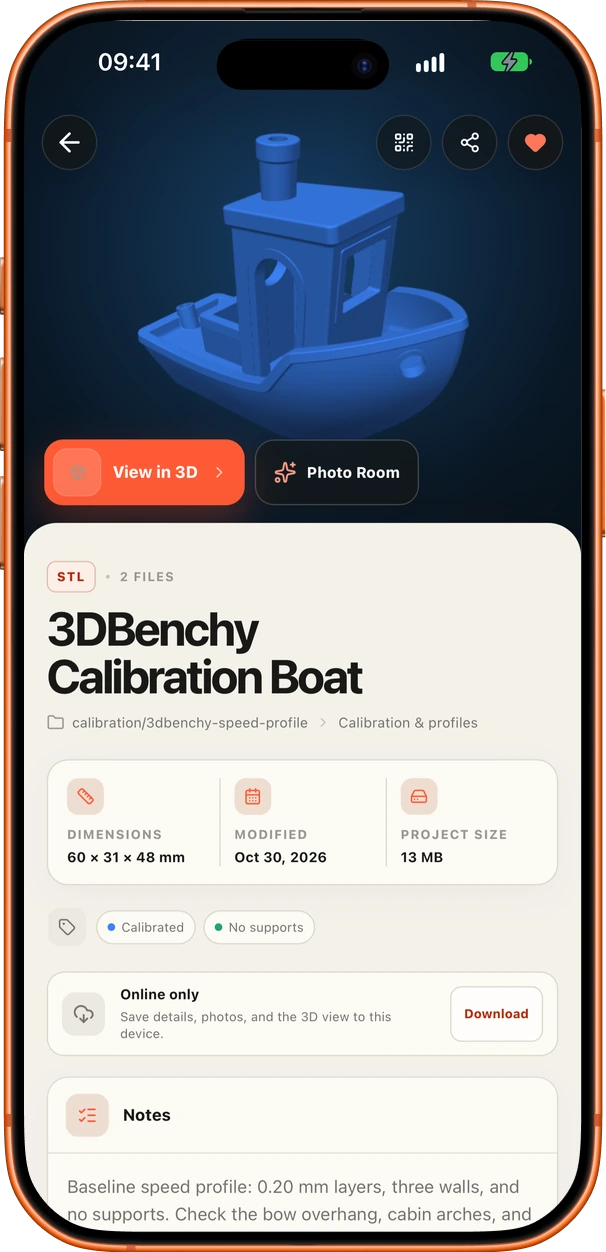
Browse projects, capture photos, and keep selected work available offline.
Companion guide →Always-on server
Run volumd in Docker on a NAS or home server you manage.
Desktop + Companion
From your desk to the workbench.
Pair a trusted phone through Tailscale to take project details, photos, parts, and assembly steps where you print.
- Direct connection. Your device talks to your Desktop or server, not a Volum cloud.
- Offline selections. Keep chosen projects available when the host sleeps.
- Revocable access. Every paired device gets its own token.
Popular guides
Get to the next useful step.
Choose between linked folders and a managed library.
01 →CompanionPair a mobile deviceConnect over your Tailnet with a short-lived pairing code.
02 →Self-hostingInstall with DockerDeploy volumd and verify the first client connection.
Check health, Tailscale, pairing, permissions, and storage.
04 →New to Volum?